Brand & Identity
Domain Setup
Buy a domain, connect it to Shopify, and make your store look like a real business — in 15 minutes.
Watch the Video
Opens in Skool community
- .com is preferred — it looks professional everywhere. .in works great for India-only stores and is cheaper.
- Buy from a registrar (GoDaddy, Hostinger, Namecheap) — cheaper than Shopify, and you keep full control
- Skip every add-on at checkout — you need the domain, nothing else
- 1 year is enough — don't lock in longer on your first store
Why this matters
Your store's default URL is xyz.myshopify.com — that tells customers you just started. A branded domain (yourbrand.com) costs Rs 500-1000/year and instantly makes you look established. Customers judge your store in 3 seconds. The URL is the first thing they see.
1
Buy Your Domain
- Go to godaddy.com and type your brand name in the search bar
- Look for the green "Available" tag — that means the domain is yours to buy
- Click "Continue" to add it to your cart
- Ignore bundle offers for .net, .xyz, .store — you only need one domain
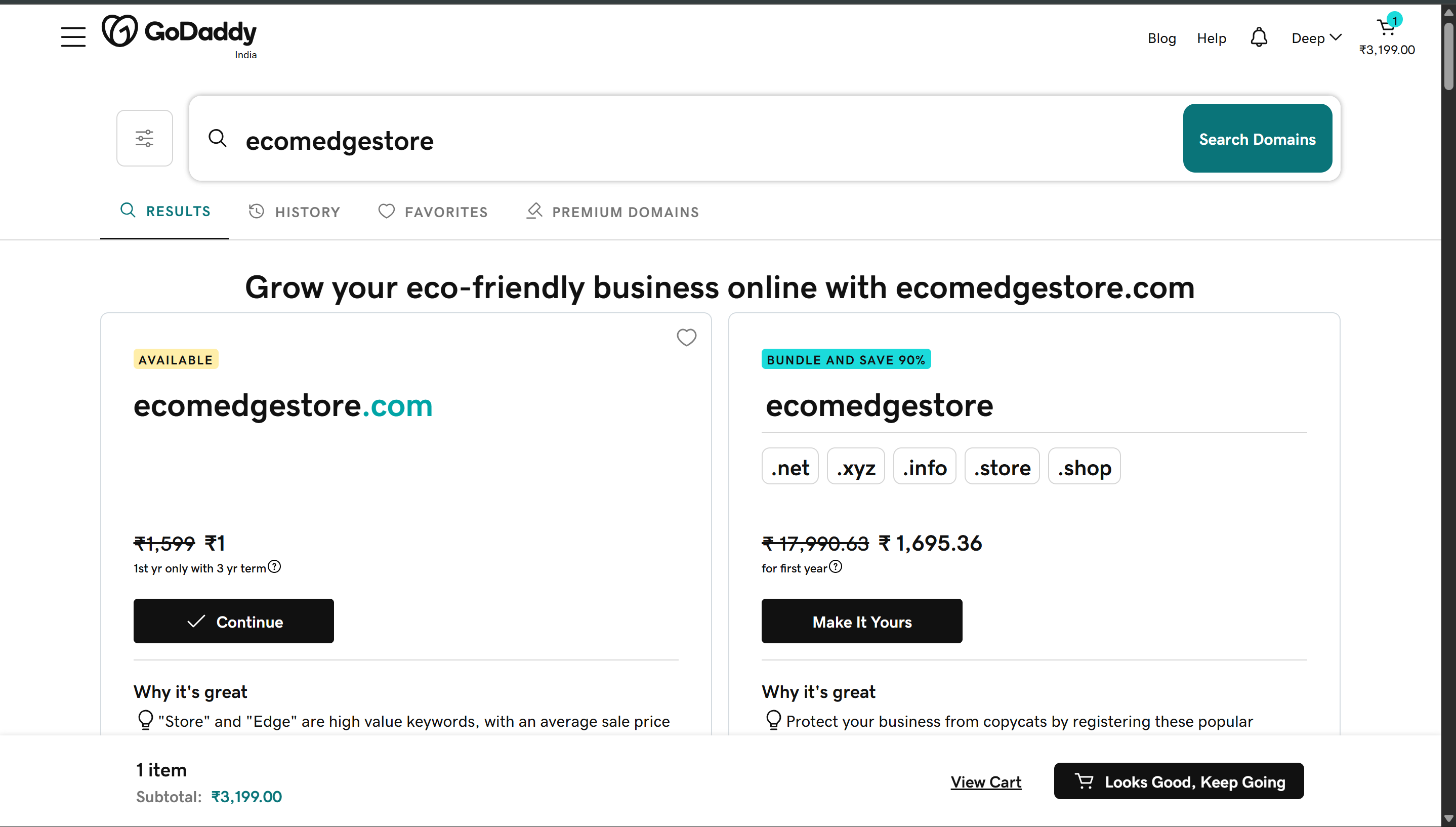
Your domain is available — click "Continue" to add to cart
GoDaddy
Seeing Rs 3000+ price?
That's a "premium" domain. Try a different spelling or add a word. Normal price: Rs 500-1200/year.
.com is taken?
Try .in — it's cheaper and works perfectly for India-only stores. Your customers won't notice the difference.
2
Set to 1 Year and Checkout
- GoDaddy will push add-ons — Domain Protection, Professional Email. You don't need any of them.
- In your cart, set the term to 1 Year — look for the dropdown. Your first store is a test, don't lock in longer.
- Click "Ready for Checkout" to proceed to payment
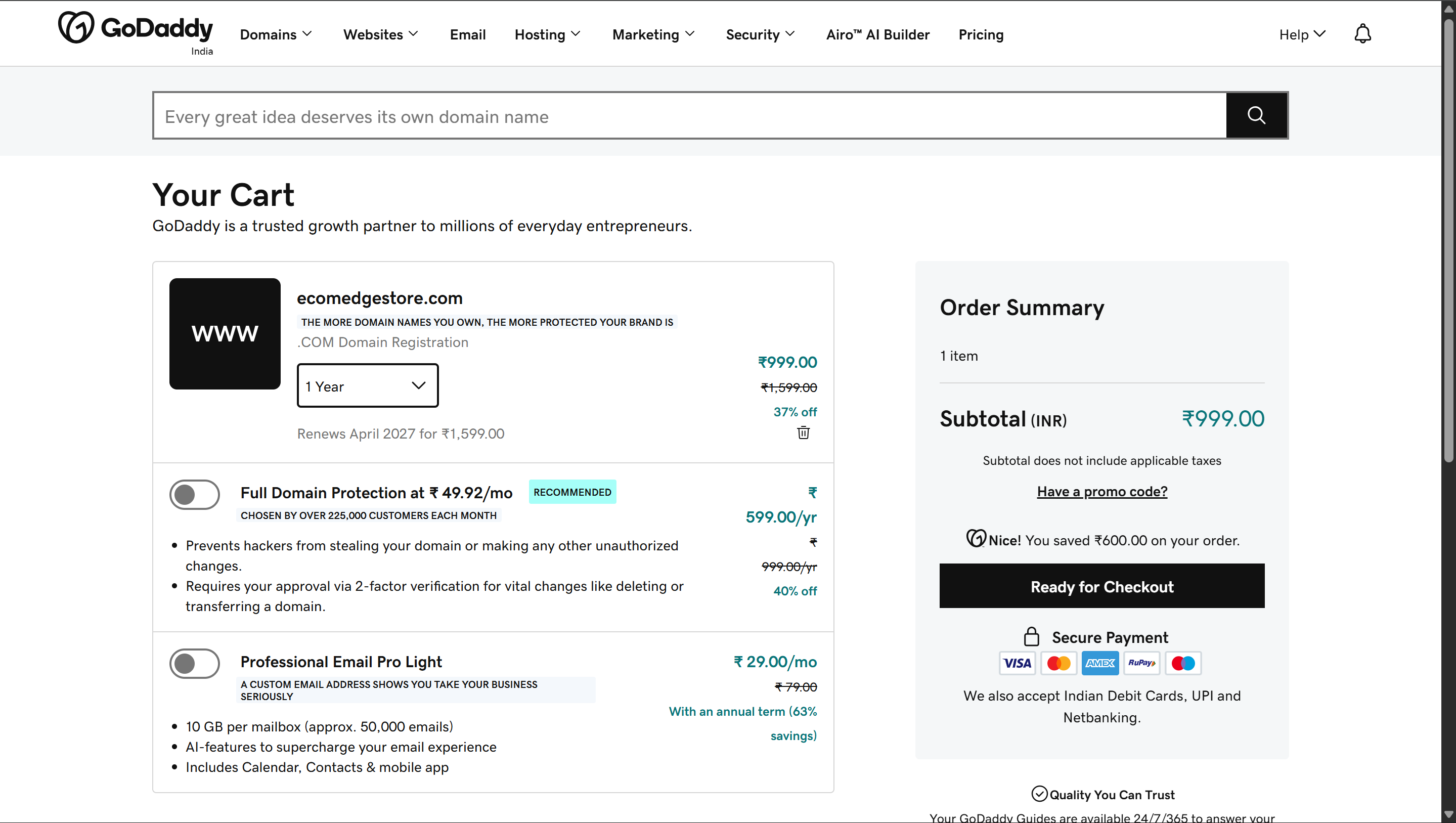
Set to 1 Year — then click "Ready for Checkout" on the right
GoDaddy
- Enter your payment details and click "Complete Purchase"
- Final price should be Rs 800-1200 for .com or Rs 300-600 for .in
- Save your GoDaddy login — you may need it to connect the domain
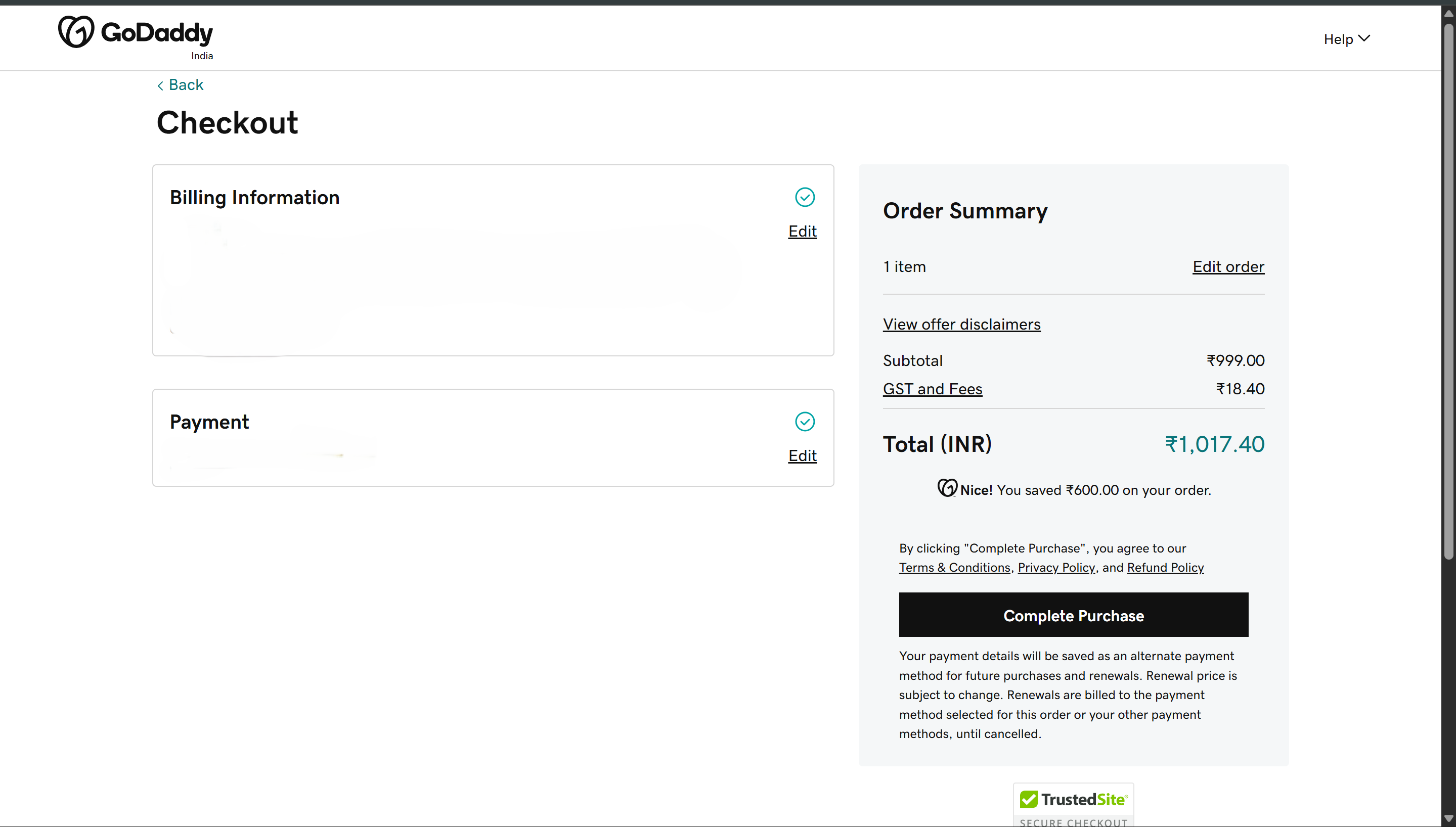
Checkout page — enter payment, click "Complete Purchase"
GoDaddy
Don't buy any add-ons
Domain Protection, Professional Email, Website Builder — all of these are optional. They're profit for GoDaddy, not value for you. Just the domain.
3
Connect to Shopify
- In your Shopify admin, go to Settings (gear icon, bottom of left sidebar) > Domains (in the settings list) > Connect existing
- If you can't find Domains: use the search bar at the top of your admin and type "domains" — it always finds it
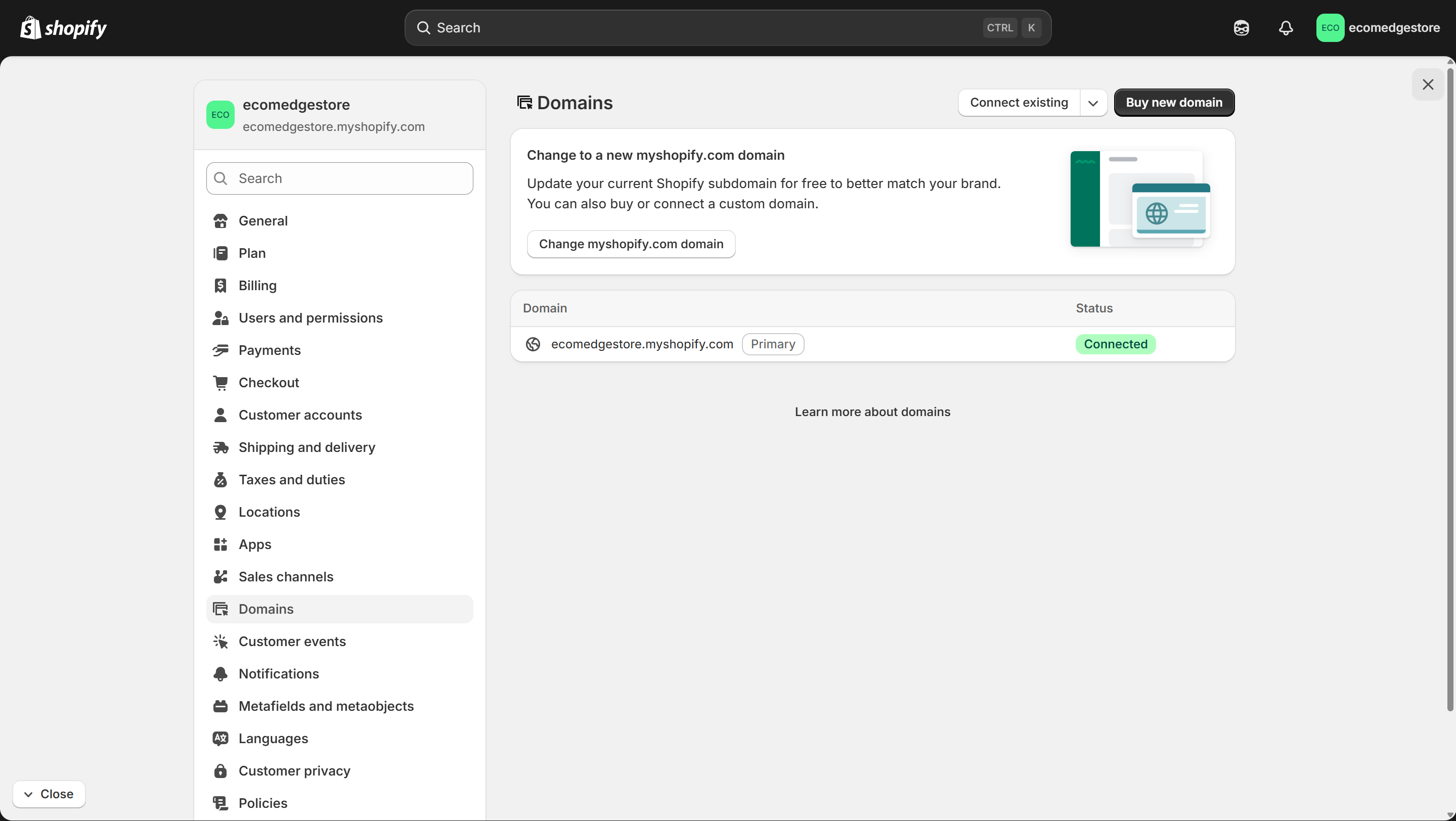
Settings > Domains — click "Connect existing"
Shopify Admin
- A popup asks for your domain — type the full domain you just bought (e.g., yourbrand.in) and click Next
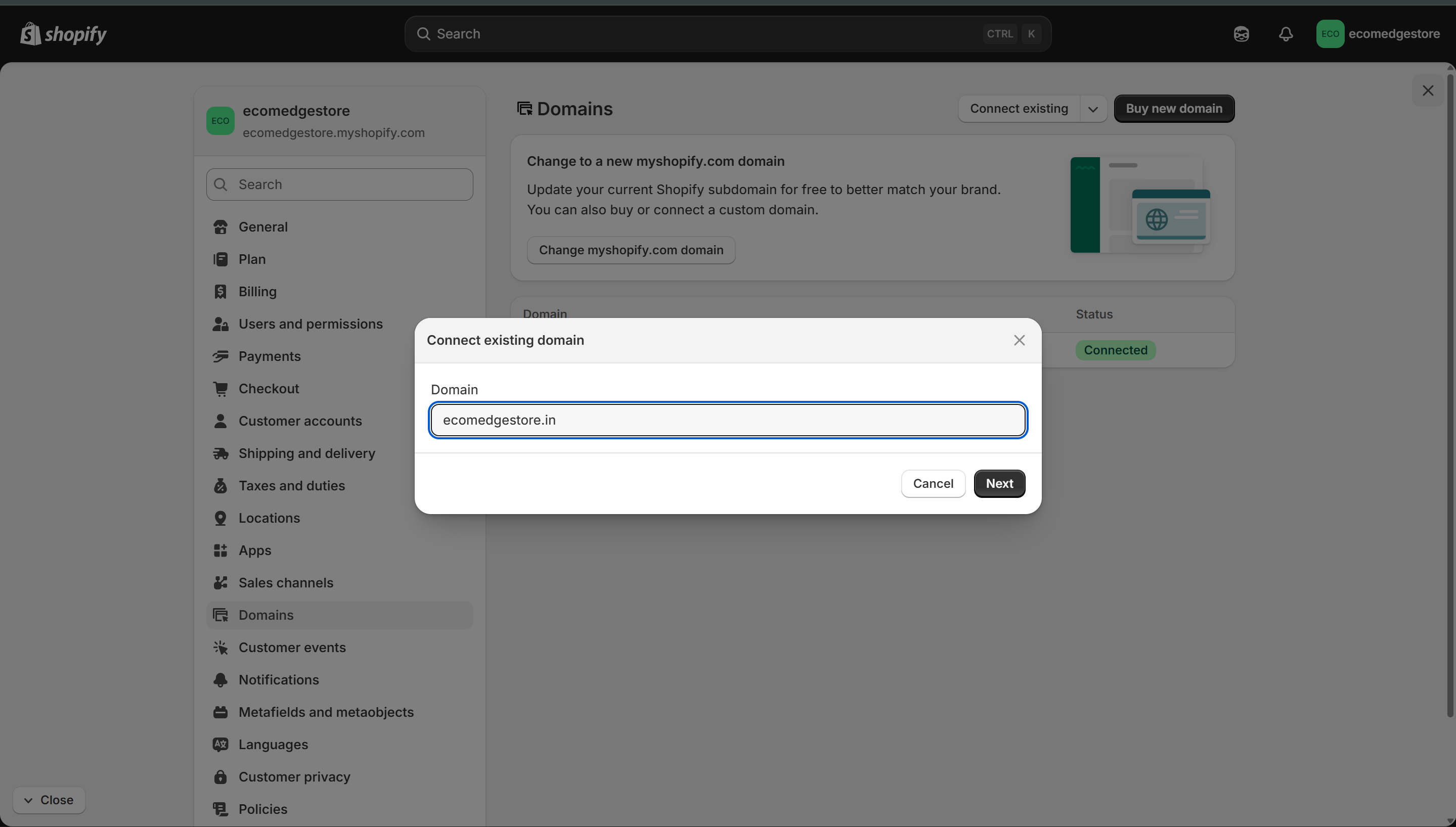
Type your full domain name — "yourbrand.in" not just "yourbrand" — then click Next
Shopify Admin
- Shopify detects your registrar. You'll see a "Connect automatically" button — click it.
- A popup opens from your registrar. Click "Connect" on that popup. That's it — Shopify and your registrar handle the rest.
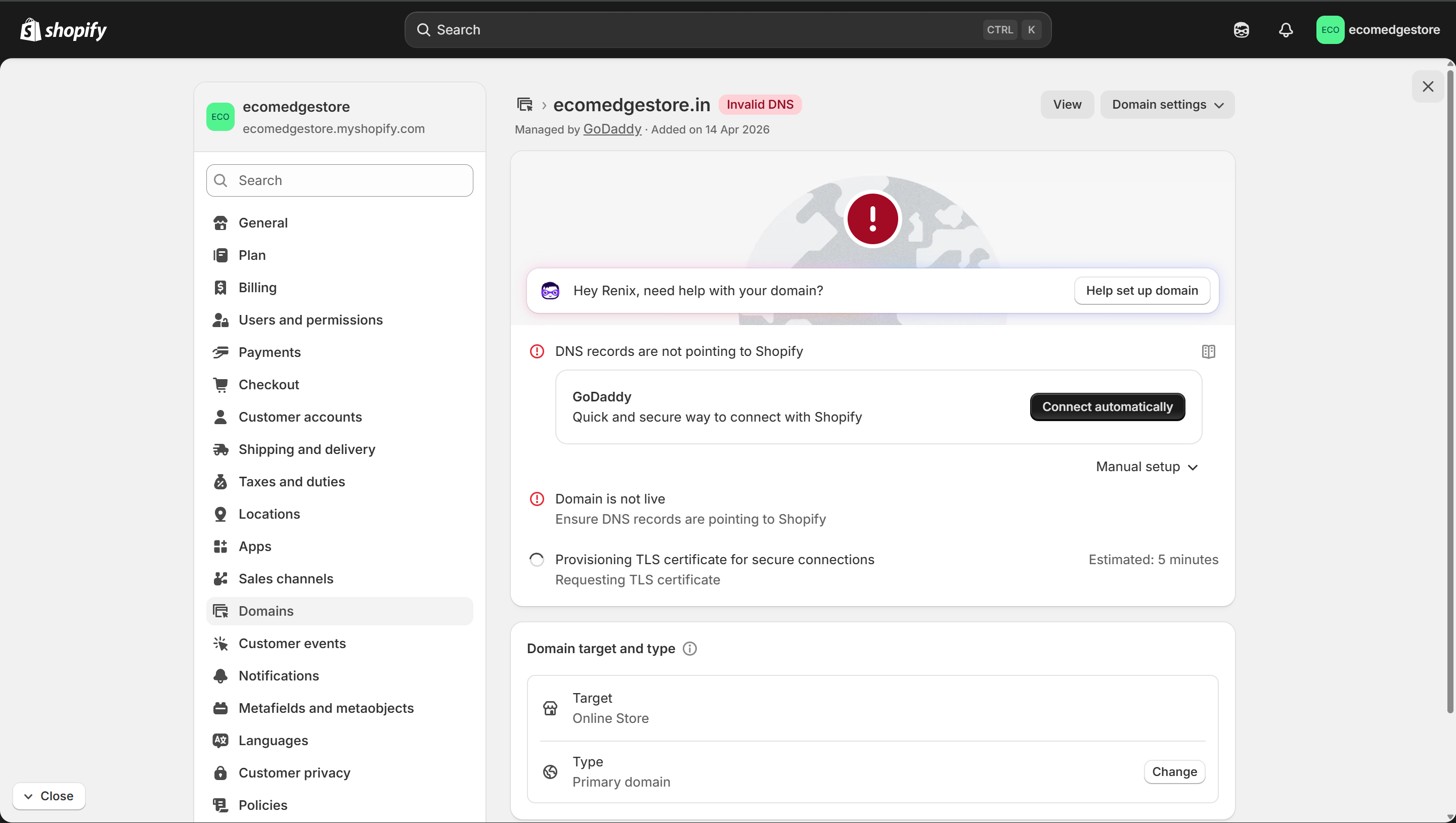
Click "Connect automatically" — Shopify and your registrar handle the DNS
Shopify Admin
- A new window opens from your registrar — GoDaddy + Shopify logos appear together
- Click "Connect" on that popup. One click and your domain is linked.
- If the popup is blank or doesn't load: close it, go back to Shopify, and try again.
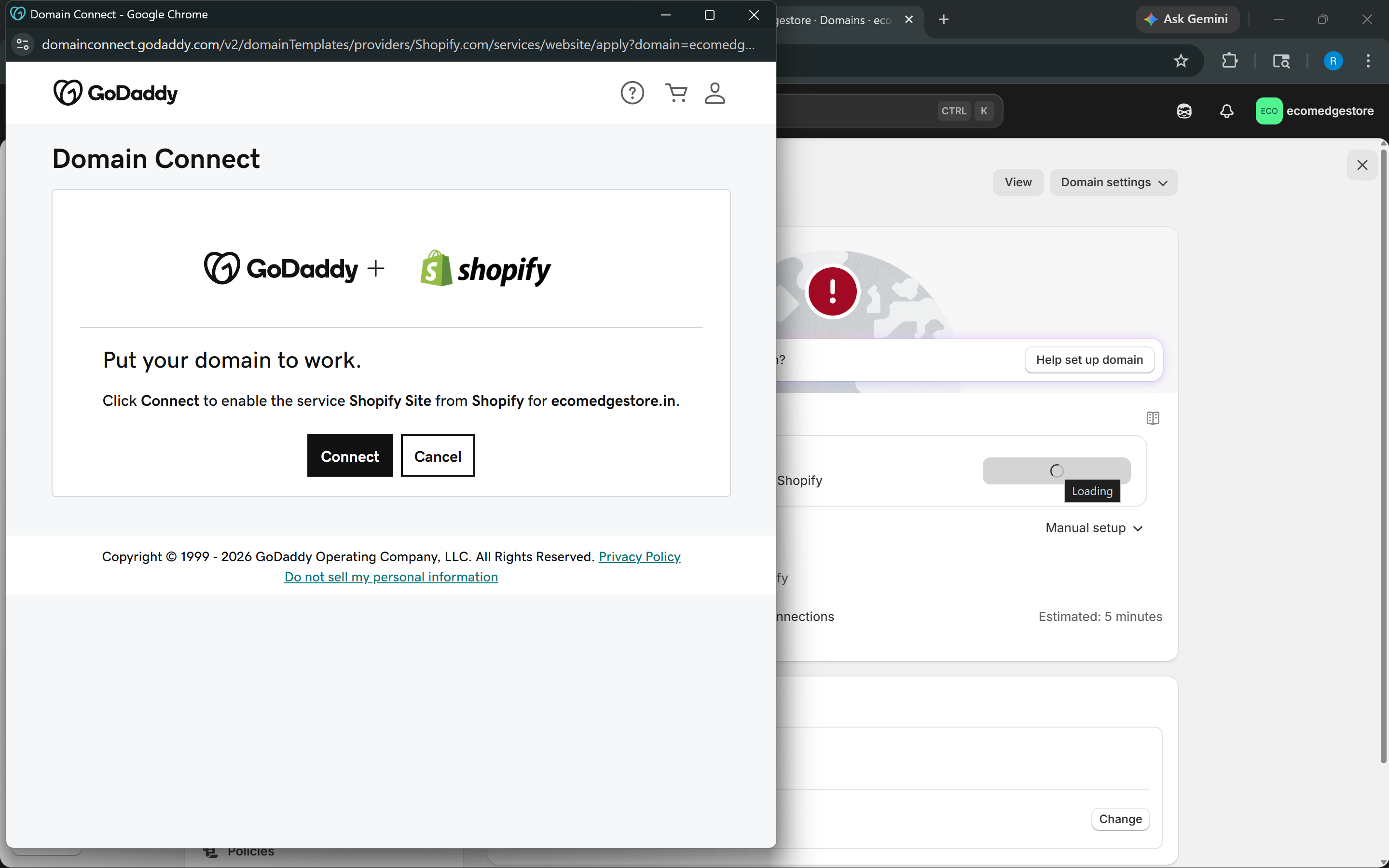
GoDaddy + Shopify — click "Connect" and your domain is linked
GoDaddy Domain Connect
TLS certificate takes 5-15 minutes. If it says "Provisioning TLS" — that's normal. Your domain is already working. The lock icon (HTTPS) activates automatically. You don't need to buy or install anything.
Didn't see "Connect automatically"? → Jump to Manual Connection
✓
You're Connected
- Your Domains page now shows all green "Connected" badges
- Three entries: your .myshopify.com (default), your branded domain, and the www version
- Your store now has a real URL — customers see yourbrand.in instead of xyz.myshopify.com
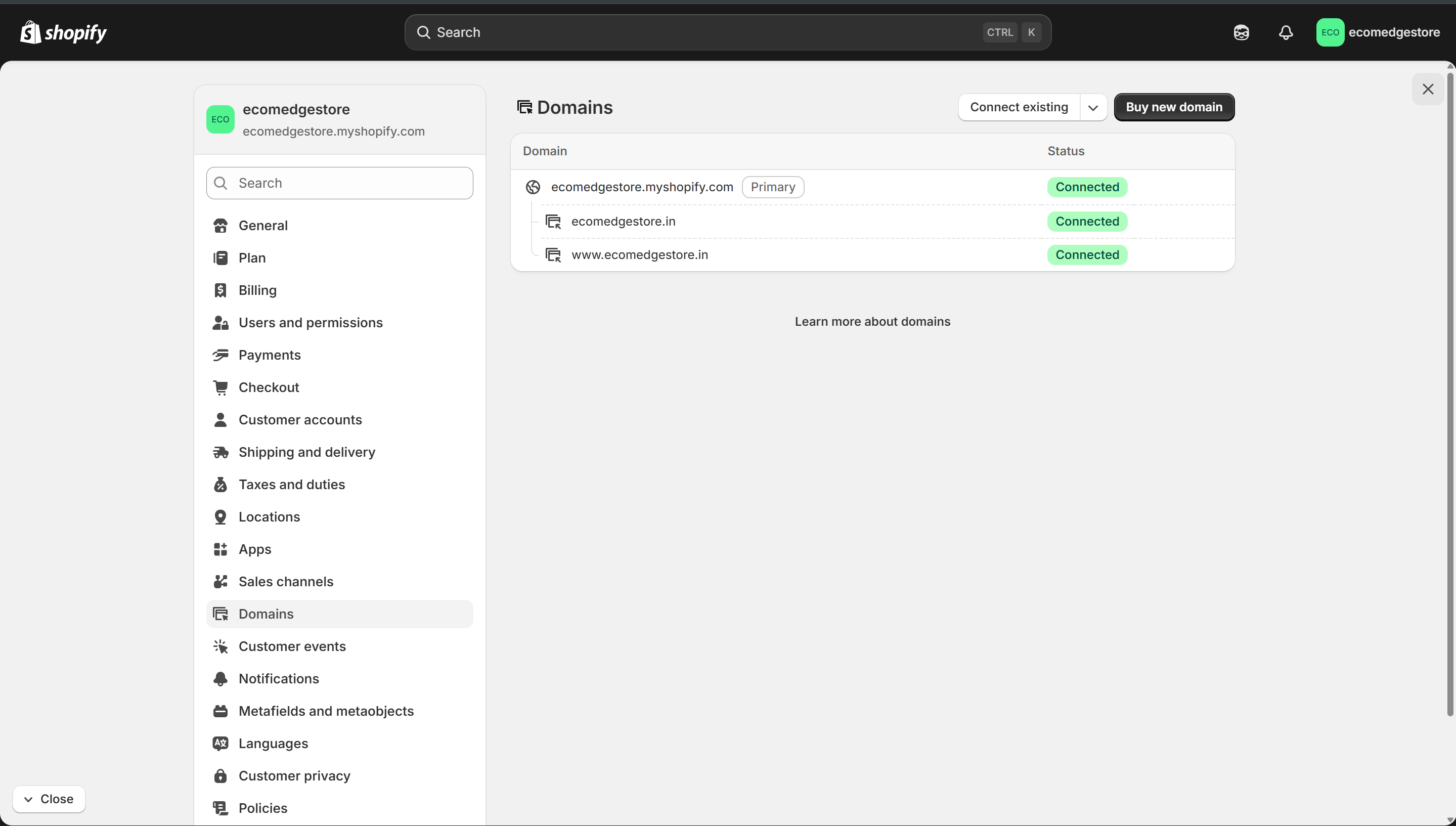
All three domains showing "Connected" in green — you're live
Shopify Admin
Manual Connection — If Automatic Wasn't Available
- This works for every registrar — GoDaddy, Hostinger, Namecheap, BigRock, or any provider worldwide
- You're copying two DNS records from Shopify and pasting them into your registrar's DNS settings
- DNS tells the internet: "when someone types my domain, send them to my Shopify store"
Copy the DNS records from Shopify
- On the domain page in Shopify, click "Manual setup" to expand the instructions
- Shopify shows you a small table with two records — an A record and a CNAME record
- Copy these values directly from your Shopify screen — they're specific to your store. Don't type them from memory.
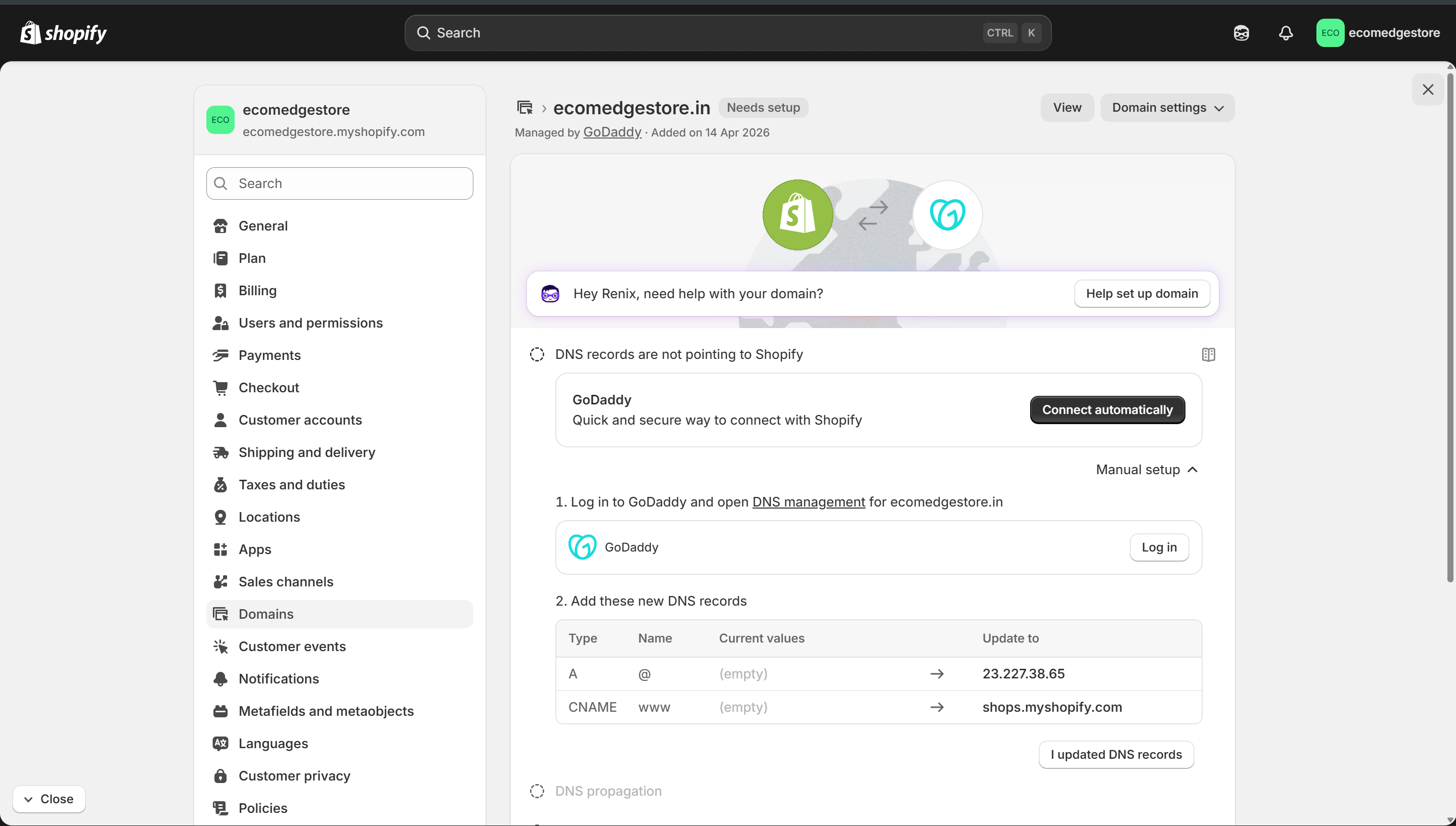
Copy both records directly from your Shopify screen — paste them into your registrar
Shopify Admin
Add the records to your registrar
- Go to your registrar's DNS settings — look for "DNS", "DNS Management", or "DNS Zone" in the domain settings area
- Click "Add New Record" and paste the A record first, then the CNAME record
- If your registrar already has an A record for @, delete the old one first — two A records breaks things
- Copy-paste the values from Shopify to avoid typos — even one wrong digit means it won't connect
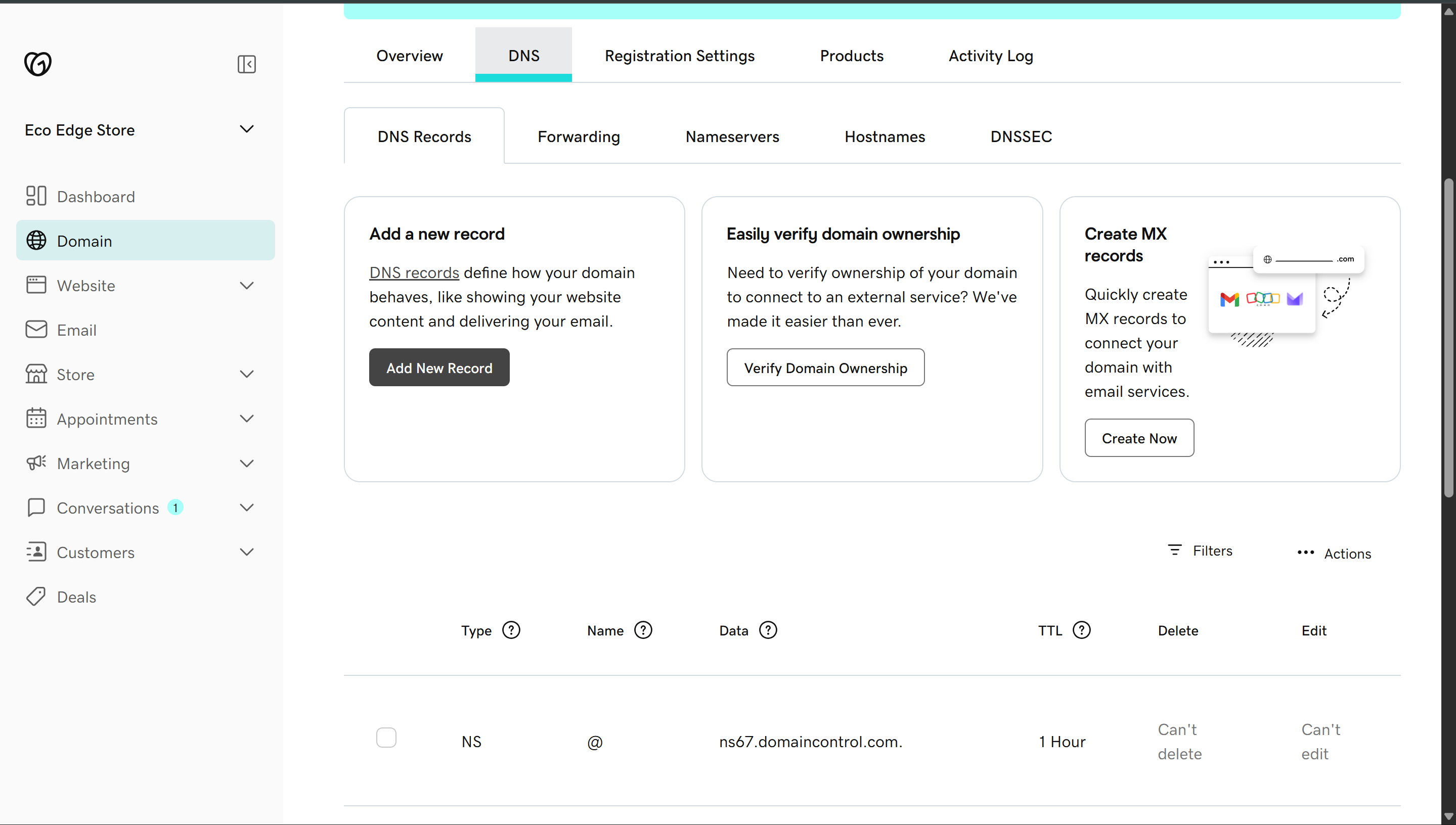
Click "Add New Record" and paste the values from Shopify. This is GoDaddy; yours may look different.
GoDaddy
- Back on Shopify, click "I updated DNS records"
- DNS takes 1-2 hours to propagate, up to 48 hours in rare cases. Don't panic if it's not instant.
- Once it connects, you'll see the same green "Connected" badges shown above
Troubleshooting
Most common issue: a typo in the DNS records. Go back to your registrar and double-check both entries. Copy-paste from Shopify again if needed.
Also check: did you delete the old default A record before adding Shopify's? Two A records for the same name = domain won't connect.
Some registrars take up to 48 hours. If records are correct, wait a full day.
Also check: did you delete the old default A record before adding Shopify's? Two A records for the same name = domain won't connect.
Some registrars take up to 48 hours. If records are correct, wait a full day.
In Shopify: Settings > Domains > click the domain > Remove domain.
This only removes it from Shopify — you still own it on your registrar. To reconnect, start again from Step 3.
This only removes it from Shopify — you still own it on your registrar. To reconnect, start again from Step 3.
Go to your registrar's DNS page. Find both records (A and CNAME) and delete them.
Wait 5 minutes, then add them fresh — copy-paste from Shopify again. This fixes most "stuck" DNS issues.
Wait 5 minutes, then add them fresh — copy-paste from Shopify again. This fixes most "stuck" DNS issues.
Look for the chat bubble icon in your Shopify admin (bottom-right corner). Type your domain problem — it checks your DNS records automatically and tells you exactly what's wrong.
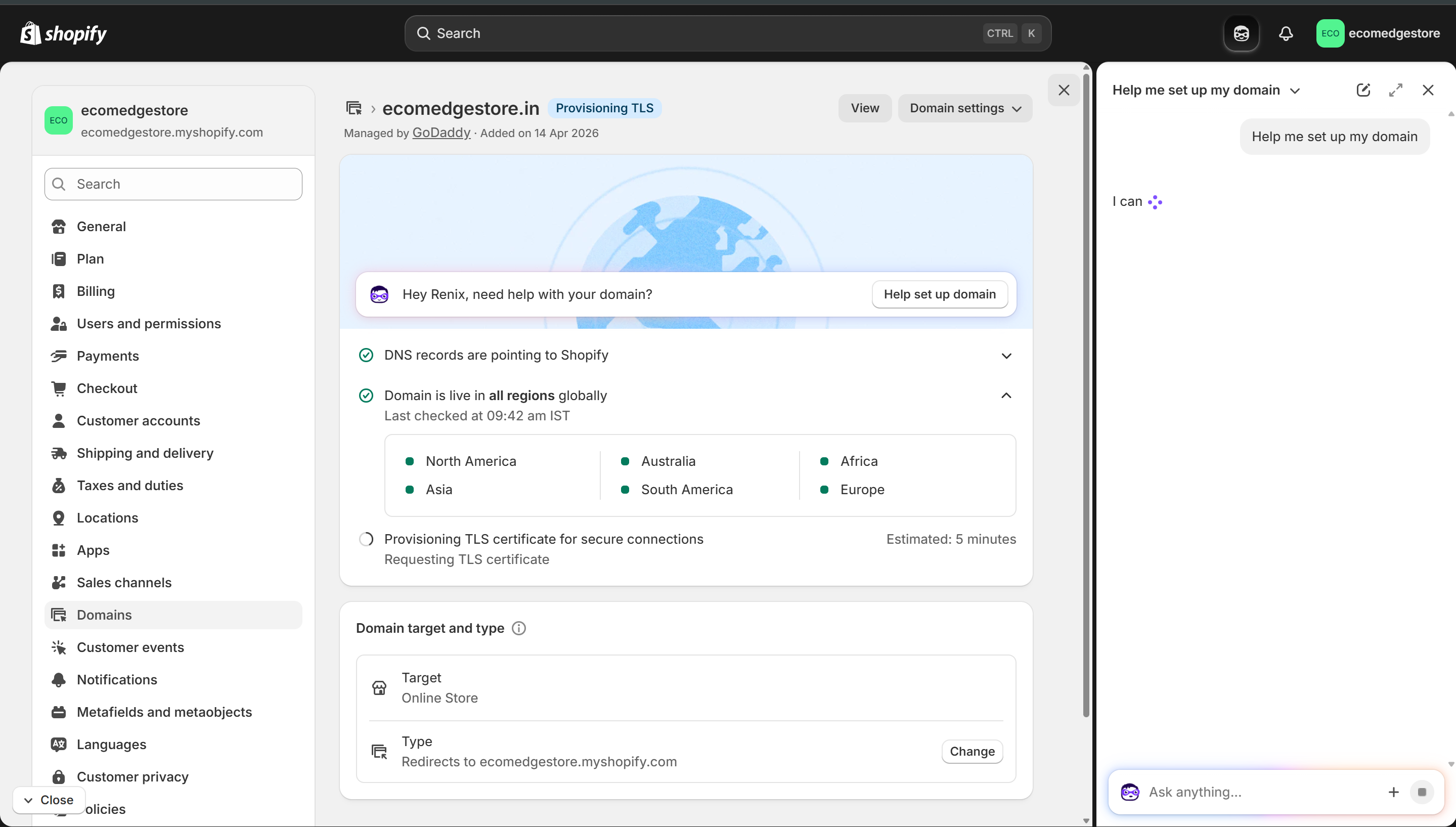
Shopify's AI assistant — type your domain problem, it diagnoses automatically
Shopify Admin
You can, but it costs more and gives you less control. Buying externally takes 5 extra minutes but saves money. If you ever leave Shopify, owning the domain externally means zero migration headaches.
Yes, anytime. But if you've started running ads or building SEO, changing your domain means starting those from scratch. That's why the naming guide comes first — pick a name you'll keep.